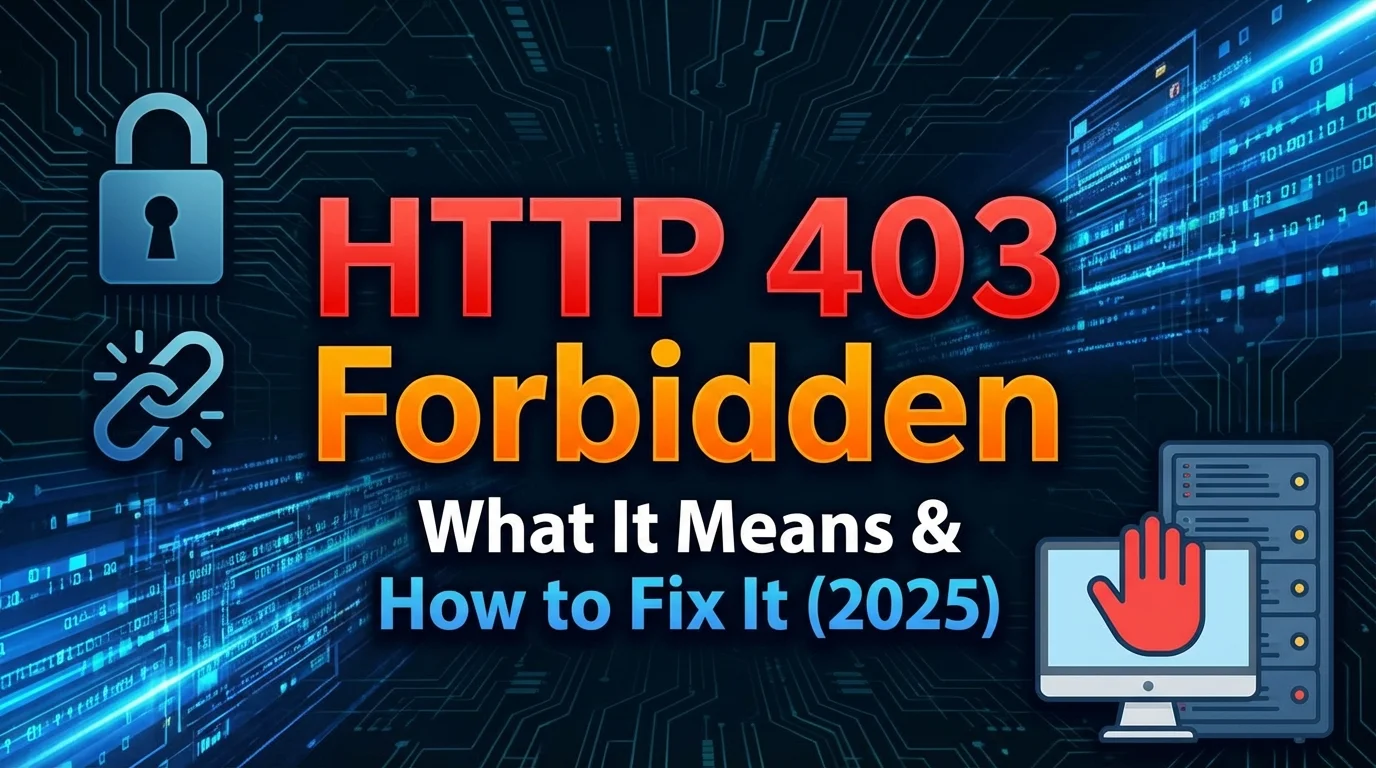
here are few things more frustrating in the digital world than trying to access a website—perhaps even your own—and being slammed with a stark, unhelpful error message. Among the most common, yet confusing, is the HTTP 403 Forbidden error.
Unlike a "404 Not Found," where the page has vanished, a 403 error means the content is right there, but the server is actively blocking you from seeing it. It’s the digital equivalent of a bouncer deciding your ID isn't good enough to enter the club.
At IsYourWebsiteDownRightNow.com, we monitor site availability constantly. We know that downtime translates to lost revenue and damaged reputation. In this comprehensive guide updated for 2025, we will dismantle the 403 error, explain why it happens, and provide actionable, expert steps to fix it.

What Exactly Does "HTTP 403 Forbidden" Mean?
The HTTP 403 Forbidden error is an HTTP status code meaning that access to the requested page or resource is forbidden for some reason.
Crucially, it means the web server understands your request but refuses to authorize it.
The Difference Between 401 vs. 403 Errors
It’s easy to confuse a 403 error with a 401 "Unauthorized" error, but the distinction is vital for troubleshooting:
-
401 Unauthorized: Usually means "You need to log in first." The server doesn't know who you are.
-
403 Forbidden: Means "I know who you are (or I don't need to), but you are definitely not allowed in here."
When you see a 403, authentication won't help. The block is happening at a deeper server or application configuration level.
Why Is This Happening? The Top Common Causes
A 403 error rarely happens randomly. It is almost always the result of a specific security configuration meant to protect the website. The problem arises when these protections are misconfigured.
Here are the primary culprits in 2025:
1. Incorrect File or Folder Permissions (The Most Common)
Web servers are strict about who can read, write, and execute files. Every file and folder on your hosting account has a set of "permissions." If the server software (like Apache or Nginx) doesn't have the right permission level to "read" a folder to show it to a visitor, it throws a 403 error to protect the data.
2. Corrupt or Misconfigured .htaccess File
The .htaccess file is a powerful configuration file used primarily by Apache web servers. It controls redirects, access restrictions, and security settings. A single typo, a misplaced character, or conflicting rules in this file can instantly lock down your entire site with a 403 Forbidden error.
3. Overzealous Security Plugins or Firewalls (WAF)
If you use a CMS like WordPress, security plugins (like Wordfence or Sucuri) are essential. However, they can sometimes trigger false positives. If a plugin thinks your IP address is acting maliciously—perhaps you tried logging in too many times—it will block your access via a 403. Similarly, server-level Web Application Firewalls (WAFs) like Cloudflare can block IPs based on geographical rules or perceived threat levels.
4. IP Address Blocking
The server may be explicitly configured to block your specific IP address or a range of IP addresses. This is often done in the server config or the .htaccess file mentioned above.
5. Missing Index Page
If a user tries to access a directory (e.g., yourwebsite.com/images/) rather than a specific page, and there is no "index" file (like index.html or index.php) inside that folder, the server might return a 403 Forbidden error instead of listing the files, depending on the server configuration.

How to Fix the HTTP 403 Forbidden Error (Step-by-Step)
If you are just a visitor to a site showing this error, your options are limited. You can try clearing your browser cache and cookies, or trying a different browser/device to ensure your IP isn't temporarily blocked. If those fail, the issue is on the website's end, and you'll need to wait for them to fix it.
If you are the website owner, follow these steps in order.
(Note: Before touching backend files, ALWAYS back up your website.)
Method 1: Check and Fix File Permissions
This is the most likely solution, especially after migrating a site or installing new components. You will need access to your site via FTP/SFTP or your hosting provider's File Manager (like cPanel).
-
Log in to your server’s file manager.
-
Navigate to the root directory of your website (often public_html).
-
Check the permissions assigned to your folders and files.
The Golden Rule of Web Permissions:
-
Folders (Directories): Should generally be set to 755 (or sometimes 750).
-
Files: Should generally be set to 644 (or sometimes 640).
If you see folders set to something restrictive like "700" or files set to "600", this is likely your cause. Change them to the recommended settings using your FTP client's "File Permissions" or "CHMOD" option.
Important Security Note: Never set folders or files to 777 (full public access) just to make the error go away. This opens a massive security hole on your server.
Method 2: Regenerate the .htaccess File
If permissions aren't the issue, the .htaccess file is the next prime suspect. The safest way to test this is to disable the current one.
-
Log into your FTP or File Manager.
-
Find the .htaccess file in your root directory. (Note: It is a hidden file; make sure your file manager is set to "show hidden files").
-
Rename the file to something like .htaccess_backup or .htaccess_OLD.
-
Try loading your website.
If the site works now, you know the old .htaccess file was corrupt. You need to generate a new one. If you are using WordPress, you can do this easily: Go to Dashboard > Settings > Permalinks, and simply click the "Save Changes" button (without changing anything) to force WordPress to create a fresh, clean .htaccess file.

Method 3: Deactivate Security Plugins Temporarily
If you can access your CMS dashboard (sometimes the 403 only affects the front end), try deactivating your security plugins one by one.
If you are locked out of your dashboard entirely, you will need to use FTP to disable them:
-
Navigate via FTP to wp-content/plugins/.
-
Find your security plugin folder (e.g., wordfence or sucuri-scanner).
-
Rename the folder (e.g., to wordfence_disabled). This forces the plugin to deactivate.
-
Check if the site loads. If it does, your security plugin was blocking you. You may need to whitelist your IP address in the plugin settings once you regain access.
Method 4: Check With Your Hosting Provider
If you have gone through steps 1-3 and the 403 Forbidden error persists, the issue might be at a server level that you cannot access.
Your host might have proactive firewall rules (like ModSecurity) that are too aggressive and are blocking genuine requests. Contact their support team. They can check the server error logs, which will usually pinpoint the exact rule causing the 403 block in seconds.
Summary
The HTTP 403 Forbidden error is a nuisance, but it's almost always resolvable with methodical troubleshooting. By checking permissions, validating your configurations, and ensuring security tools aren't overreacting, you can get your site back online quickly.
If you are ever unsure if a website is down just for you or for everyone, use our instant tool at IsYourWebsiteDownRightNow.com to confirm the status before you start troubleshooting.