Last Updated: December 19, 2025 | Reading Time: 18 minutes
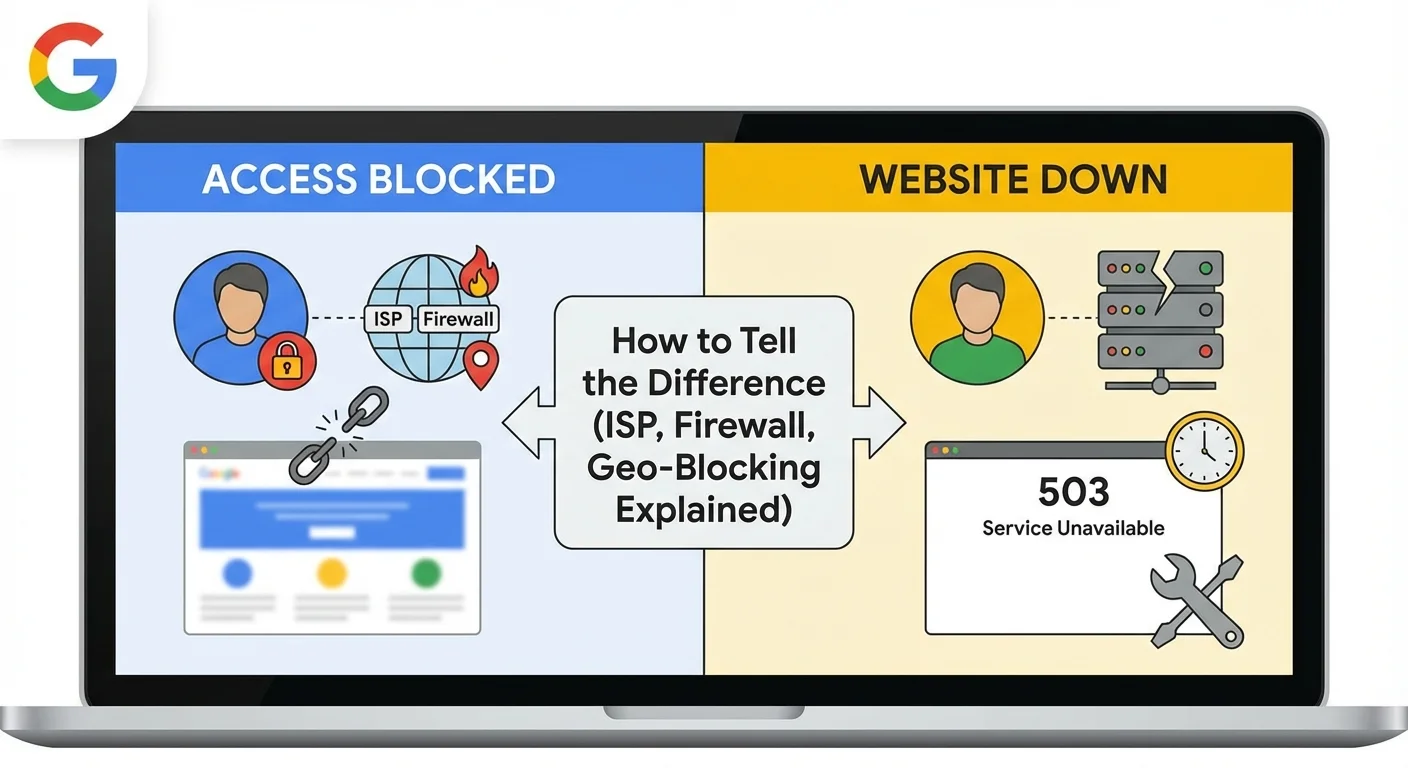
You're trying to access a website, and it won't load. Your first thought? "The site must be down." But here's what most people don't realize: in more than 60% of cases where users report a website as "down," the site is actually running perfectly fine. The problem isn't the website—it's access restriction.
Understanding whether a website is genuinely down or simply blocked for you is crucial. It affects everything from how you troubleshoot the issue to whether you need to contact your ISP, change your network, or simply wait for the site to come back online. This distinction matters even more if you're running a business, monitoring competitors, or managing digital infrastructure.
In this comprehensive guide, we'll walk you through exactly how to identify whether you're dealing with actual downtime or access restrictions, what causes each scenario, and most importantly—how to fix it.
Quick Answer: Is It Down or Blocked?
Before we dive deep, here's a quick diagnostic table to help you identify your situation immediately:
| Symptom | Most Likely Cause | What It Means |
|---|---|---|
| Site works on mobile data but not Wi-Fi | ISP block or network firewall | Access is blocked at network level |
| Returns HTTP 403 Forbidden error | Access blocked by server/WAF | You're specifically denied access |
| Connection times out globally | Website is actually down | Server isn't responding to anyone |
| Works through VPN but not direct connection | Geo-blocking or ISP filter | Your location/ISP is restricted |
| Returns 502 or 503 error | Server overload or maintenance | Temporary downtime issue |
| DNS_PROBE_FINISHED_NXDOMAIN | DNS failure or domain expired | Either DNS down or domain issue |
| Site loads partially, then stops | Content filtering or partial block | Some resources are being filtered |
The fastest way to know for certain? Check the website status from multiple locations globally. If our monitoring tool shows the site is up but you can't access it, you're dealing with an access block, not downtime.
What "Website Down" Actually Means
When a website is truly down, it means the server hosting that website is either unreachable, not responding, or has stopped serving content entirely. This is a global condition—nobody can access the site, regardless of their location, ISP, or device.
Technical Signs of Real Downtime
1. Server Unresponsiveness
The web server has crashed, been shut down, or lost power. When you try to connect, your browser can't establish any communication with the server. You'll typically see messages like "This site can't be reached" or "ERR_CONNECTION_REFUSED."
2. DNS Resolution Failures
The Domain Name System (DNS) translates website names (like google.com) into IP addresses. When DNS fails, your browser literally doesn't know where to find the website. This results in errors like DNS_PROBE_FINISHED_NXDOMAIN, which means the domain name couldn't be resolved to any IP address.
3. 5xx Server Errors
These are the classic "website down" indicators:
- 500 Internal Server Error: The server encountered an unexpected condition
- 502 Bad Gateway: The server acting as a gateway received an invalid response
- 503 Service Unavailable: The server is temporarily overloaded or under maintenance
- 504 Gateway Timeout: The server didn't respond in time
When these errors appear globally (meaning everyone sees them), the website is genuinely experiencing downtime.
4. Global Impact
This is the defining characteristic of real downtime: everyone is affected. It doesn't matter if you're in New York or Tokyo, using Comcast or AT&T, on Wi-Fi or mobile data—nobody can reach the site.
Common Causes of Real Website Downtime
- Server crashes or hardware failures: Physical equipment fails or software crashes
- Hosting provider issues: The entire hosting infrastructure goes down (like the Cloudflare outage in November 2025)
- DDoS attacks: Malicious traffic overwhelms the server
- Expired SSL certificates: SSL certificate expiration can prevent secure connections
- Database failures: The database that powers the website becomes unavailable
- Code deployment errors: New code breaks the site
- Network infrastructure problems: Issues with internet backbone providers
When websites go down, the impact is immediate and measurable. According to 2025 research, the average cost of downtime is $14,000 per minute for enterprise businesses, which is why uptime monitoring has become critical.
How to Verify Real Downtime
The most reliable method is to check from multiple independent sources:
- Use a website status checker: Tools like IsYourWebsiteDownRightNow check from multiple geographic locations simultaneously
- Check social media: Search Twitter/X for the website name + "down"—if it's a major site, people will be talking about it
- Use multiple devices and networks: Try your phone on mobile data, a different Wi-Fi network, and a friend's connection
If the site is down everywhere, you're dealing with genuine downtime. If it works on some connections but not others, you're looking at an access block.
What "Access Blocked" Actually Means
Access blocking is fundamentally different from downtime. The website is operational and serving content—just not to you. Someone, somewhere has decided that your request shouldn't be fulfilled, and there are multiple layers where this decision can happen.
Types of Access Blocks
1. ISP-Level Blocking
Your Internet Service Provider can block access to specific websites. This happens more frequently than most people realize.
Why ISPs block websites:
- Legal requirements: Government mandates to block certain content
- Copyright enforcement: Blocking torrent sites or streaming platforms
- Security concerns: Blocking sites known for malware or phishing
- Content filtering: Parental controls or business network policies
For example, many ISPs block access to certain adult content sites, torrent platforms, or gambling websites based on local laws. If you're seeing a generic "access blocked" message or getting redirected to a warning page, your ISP is likely responsible.
How to identify ISP blocking:
- The site works on mobile data but not your home Wi-Fi
- You see a custom block page from your ISP
- The site works through a VPN
- Other users on different ISPs can access the site fine
We've covered this extensively in our guide on Website Blocked by ISP? Here's How to Check (and Fix It).
2. Geo-Blocking (Geographic Restrictions)
Websites and content providers often restrict access based on your physical location. This is particularly common with:
- Streaming services: Netflix, Hulu, BBC iPlayer show different content by country
- News websites: Some EU news sites block US visitors due to GDPR compliance costs
- E-commerce: Pricing and product availability vary by region
- Government services: Naturally restricted to residents
- Licensing restrictions: Content licensed only for specific countries
Real-world example: Check the status of Pornhub, and you'll see it's accessible globally—but several US states have implemented age verification laws that effectively block access for users in those states. The site isn't down; it's geo-restricted.
3. Firewall and Network Restrictions
Corporate networks, schools, universities, and public Wi-Fi often implement strict firewall rules:
- Corporate firewalls: Block social media, gaming, streaming, and adult content during work hours
- School networks: Restrict access to anything not educational
- Public Wi-Fi: Libraries, airports, and coffee shops often filter content
- Government networks: Highly restricted access policies
How this looks to users: You might get a 403 Forbidden error, a custom firewall block page, or simply a connection timeout. The key indicator? The site works fine on your phone's mobile data but not on the Wi-Fi network.
4. CDN and WAF Blocking
Modern websites use Content Delivery Networks (CDNs) and Web Application Firewalls (WAFs) to protect against attacks. Sometimes these security systems block legitimate users:
- Cloudflare blocking: If your IP appears suspicious or is associated with bot traffic
- Rate limiting: Making too many requests too quickly
- Geographic filtering: CDN configured to only serve specific regions
- Bot detection: Browser fingerprinting identifies automated access
What you'll see: Usually a 403 Forbidden error or a challenge page (CAPTCHA). The site is functioning perfectly—it's just refusing your specific request.
5. IP-Based Blocking
Websites can block specific IP addresses or entire IP ranges:
- Previous abuse: Your IP was involved in spam, scraping, or attacks
- VPN/proxy detection: Site blocks known VPN IP addresses
- Shared IP issues: If you're on shared hosting or public Wi-Fi, someone else's actions can get the IP blocked
- Country-level blocks: Blocking entire IP ranges from specific countries
Access Blocking vs Security Features
It's important to distinguish between blocking and legitimate security measures:
- SSL certificate issues: Your browser warns you about security risks, but you can usually proceed
- HTTPS enforcement: Site requires secure connection but isn't blocking you
- Authentication requirements: Site requires login, which is different from blocking
Real-World Examples: Blocked vs Down
Let's look at specific cases that illustrate the difference:
Case Study 1: Pornhub Access Issues
The Situation: User reports "Is Pornhub down?"
The Reality: Checking Pornhub's status shows it's online globally. However:
- Users in certain US states see age verification requirements
- Some ISPs block adult content by default
- Corporate and school networks filter this category
- Some countries have national-level blocks
Diagnosis: The site isn't down—it's blocked at various levels depending on the user's location, network, and local regulations. The website itself is operating normally and serving millions of users.
Case Study 2: Google Service Interruption
The Situation: User asks "Is Google down right now?"
The Reality: When Google actually goes down, it affects users globally. You'll see:
- 500 Internal Server Error or 502 Bad Gateway errors
- Complete inability to load any Google service
- Social media explodes with reports
- News articles appear within minutes
Diagnosis: This is genuine downtime. Google rarely goes down, but when it does, the global impact is immediate and obvious. There's no ambiguity—either Google works for everyone or it's down for everyone.
Case Study 3: Instagram Regional Issues
The Situation: Multiple users report "Is Instagram down?"
Investigation: Checking Instagram's status shows:
- Users in North America: completely functional
- Users in Southeast Asia: can't load feed
- Users in Europe: intermittent issues
Diagnosis: This indicates either:
- Regional CDN problems (partial downtime)
- Geographic load balancing issues
- Possible regional ISP issues
This is a hybrid scenario—it's not a complete access block, but it's also not total downtime. It's a regional service degradation.
Case Study 4: Discord During School Hours
The Situation: Student reports "Discord is down"
Testing:
- School Wi-Fi: Access blocked, connection refused
- Mobile data: Works perfectly
- Discord status check: Operational globally
Diagnosis: Network-level firewall block. The school's IT department has configured the network to block Discord during class hours. The site isn't down—it's administratively restricted on that specific network.
Case Study 5: Netflix Content Availability
The Situation: User can access Netflix but specific shows don't appear
Reality: Netflix is fully operational, but:
- Content libraries vary by country
- Licensing agreements restrict geographic availability
- VPN detection blocks users trying to circumvent restrictions
Diagnosis: This is application-level geo-blocking. The service works, but content access is restricted based on your location. This is different from the site being down or completely blocked.
How to Check Properly: Step-by-Step Diagnostic Process
Follow this systematic approach to determine exactly what's happening:
Step 1: Use a Multi-Location Status Checker
Start here: Check the website status using our monitoring tool.
Our tool checks from multiple geographic locations simultaneously, giving you instant visibility into whether the site is:
- Globally down: Shows down from all check locations
- Regionally restricted: Works in some locations but not others
- Fully operational: Working everywhere, meaning your issue is local
For example, to check if a site is down:
This single step eliminates 80% of diagnostic uncertainty.
Step 2: Check the HTTP Status Code
Understanding HTTP status codes tells you exactly what the server is saying:
2xx codes (Success):
- 200 OK: Site is working perfectly
4xx codes (Client errors - usually blocking):
- 403 Forbidden: You're specifically denied access
- 404 Not Found: Page doesn't exist (not really "down")
5xx codes (Server errors - actual downtime):
- 500 Internal Server Error: Server-side problem
- 502 Bad Gateway: Upstream server issue
- 503 Service Unavailable: Temporary overload
- 504 Gateway Timeout: Server didn't respond in time
How to check status codes:
- Chrome: Press F12, go to Network tab, reload page, click the request
- Firefox: Similar process with Developer Tools
- Online tools: Use our status checker which shows the HTTP code
- Command line:
curl -I https://example.com
Step 3: Test from Multiple Networks
Systematically test from different network environments:
Test Matrix:
- Your home Wi-Fi
- Mobile data (4G/5G)
- A friend's different ISP
- Public Wi-Fi (coffee shop, library)
- Mobile hotspot from a different carrier
What the results mean:
- Works on mobile data only: ISP block at home
- Works on all networks except work/school: Firewall restriction
- Works on VPN only: Geographic or IP-based restriction
- Doesn't work anywhere: Genuine downtime
Step 4: Check DNS Resolution
DNS problems can look like downtime but are actually infrastructure issues:
How to test DNS:
Windows (Command Prompt):
nslookup example.comMac/Linux (Terminal):
dig example.comWhat to look for:
- "Non-existent domain": DNS can't find the site
- Timeout: DNS servers aren't responding
- Returns an IP: DNS is working fine
If DNS fails on your network but works elsewhere, it's a DNS issue, not website downtime.
Step 5: VPN Test (Use Carefully)
Testing with a VPN can confirm geo-blocking or ISP issues:
The test: Connect to a VPN server in a different country and try accessing the site.
Results interpretation:
- Site works on VPN: Your location or ISP is being blocked
- Site still doesn't work: More likely genuine downtime
- Site works on some VPN locations but not others: Geo-blocking
Important note: Using VPNs to bypass geographic restrictions may violate the website's terms of service. This test is for diagnostic purposes only.
Step 6: Check Error Messages Carefully
The exact error message tells you a lot:
ERR_CONNECTION_REFUSED: Server actively refused the connection
DNS_PROBE_FINISHED_NXDOMAIN: Domain name doesn't exist or can't be found
This site can't be reached: General connection failure
"Access Denied" or custom ISP page: Definite blocking
SSL certificate warnings: Certificate issues, not necessarily downtime
What This Means for Different User Groups
For Regular Users
If the site is blocked:
- Understand it's not your device's fault
- Check if your network has restrictions
- Consider whether accessing it is appropriate (work/school networks)
- Know your rights regarding ISP-level blocks
If the site is down:
- Wait patiently—you can't fix server issues
- Check social media for updates
- Look for official status pages
- Don't repeatedly refresh (it makes things worse)
For Website Owners and Administrators
Why this distinction matters to you:
- False downtime alerts: If you get reports of "site down" but your monitoring shows it's up, investigate blocking issues
- Geographic testing: Test your site from different countries/ISPs
- CDN configuration: Ensure your security rules aren't too aggressive
- ISP relationships: Some content may trigger ISP filters
- Legal compliance: Understand geo-blocking requirements in your industry
Recommended approach: Implement comprehensive website monitoring that checks from multiple global locations. 99% of businesses don't know their website is down until customers complain—don't be part of that statistic.
For IT Professionals and DevOps Teams
Diagnostic priority:
- Check global status first
- Examine HTTP status codes
- Review firewall and WAF logs
- Investigate geographic patterns
- Analyze CDN behavior
Key monitoring metrics:
- Response time by region
- Error rate by geographic location
- Status code distribution
- DNS resolution success rate
Use our API for infrastructure monitoring to programmatically check site status and differentiate between downtime and access issues.
For AI Agents and Automation Systems
If you're building AI systems or bots that need to verify website status:
- Use our real-time website status API
- Implement multi-region checking
- Parse HTTP status codes correctly
- Don't assume timeouts mean downtime
- Check from multiple locations before declaring a site down
This is particularly important for AI agents monitoring competitors, tracking service availability, or managing automated workflows.
Common Misconceptions Debunked
Myth 1: "If I Can't Access It, It Must Be Down"
Reality: As we've shown, most access issues are local restrictions, not global downtime. Before declaring a site down, verify from multiple sources.
Myth 2: "403 Forbidden Means the Site Is Broken"
Reality: 403 errors mean the site is working perfectly—it's just refusing your request. This is intentional behavior, not a malfunction.
Myth 3: "VPNs Are Only for Privacy"
Reality: VPNs are also diagnostic tools. If a site works on VPN but not normally, you've identified a geographic or ISP restriction.
Myth 4: "Slow Loading = Site Is Down"
Reality: Slow loading suggests performance issues, high traffic, or network congestion—but the site is still technically "up." There's a difference between degraded performance and downtime.
Myth 5: "Corporate Blocks Are Illegal"
Reality: Organizations have the legal right to restrict internet access on their networks. If you're on company Wi-Fi, they control what you can access.
Myth 6: "If It Works on Mobile Data, My Wi-Fi Is Broken"
Reality: More likely, your Wi-Fi network (or the ISP providing it) has content filtering or firewall rules that mobile networks don't have.
Fixing Access Issues vs Waiting for Downtime to Resolve
What You Can Do About Access Blocks
For ISP blocks:
- Contact your ISP to confirm the block
- Check if you can opt-out of filtering
- Understand the legal context (some blocks are mandated)
- Consider alternative internet providers
For network restrictions:
- Respect workplace/school policies
- Use personal mobile data for personal browsing
- Don't try to circumvent security measures
- Talk to IT if you need legitimate access
For geo-blocking:
- Understand this is usually licensing-related
- Look for legal alternatives in your region
- Accept that some content isn't available everywhere
For firewall/WAF blocks:
- Check if you triggered rate limiting
- Clear cookies and try again
- Contact the website's support team
- Verify your IP isn't on a blocklist
What You Cannot Do About Real Downtime
When a website is genuinely down:
- Don't refresh repeatedly: This adds to server load and can slow recovery
- Don't blame your internet: If it's down globally, it's not your connection
- Don't try different browsers: Won't help if the server is down
- Don't clear cache/cookies: These won't resolve server-side issues
What you CAN do:
- Check the company's social media for updates
- Visit their status page if they have one
- Report it if you're among the first to notice
- Be patient—server issues often resolve quickly
According to our analysis of website downtime costs, most legitimate outages are resolved within 30 minutes for major services.
Advanced Diagnostics: Tools and Techniques
Diagnostic Command Line Tools
For technically-inclined users, these commands provide detailed information:
Check if site is reachable:
ping example.comTrace the network route:
traceroute example.com  # Mac/Linux
tracert example.com     # Windows
Check HTTP headers:
curl -I https://example.comFull request details:
curl -v https://example.comDNS lookup:
nslookup example.com
dig example.com
Browser Developer Tools
Modern browsers have powerful diagnostic capabilities:
Chrome DevTools (F12):
- Network tab: See all requests and their status codes
- Console tab: Shows JavaScript errors
- Security tab: SSL certificate information
- Application tab: Cache and storage data
What to look for:
- Red requests (failed)
- Status codes (especially 4xx and 5xx)
- Response times (if some requests are extremely slow)
- Blocked resources (indicates filtering)
Third-Party Monitoring Services
For comprehensive monitoring:
- IsYourWebsiteDownRightNow: Multi-location status checking
- Our monitoring guide: Complete monitoring strategies
- Real-time API access: For automated systems
Mobile App Testing
Don't overlook mobile-specific issues:
- Test both mobile web and native apps
- Check on different mobile carriers
- Verify both Wi-Fi and cellular connections
- Test in airplane mode to isolate issues
Security and Privacy Implications
When Blocking Is a Security Feature
Not all blocking is bad. Legitimate security blocks include:
1. Malware and Phishing Protection
Browsers and ISPs block sites known to distribute malware or conduct phishing attacks. If you encounter these blocks:
- Take them seriously: These sites pose real threats
- Don't try to bypass: The block is protecting you
- Report false positives: If a legitimate site is blocked, report it
2. DDoS Mitigation
When sites are under attack, CDNs like Cloudflare implement aggressive blocking:
- Challenge pages (CAPTCHA)
- Temporary IP blocks
- Geographic restrictions
This is the site protecting itself, not targeting you specifically.
3. Bot Detection
Websites block automated access to prevent:
- Content scraping
- Price manipulation
- Ticket scalping
- Account creation abuse
If you're a legitimate user caught by bot detection, try:
- Clearing cookies
- Disabling browser extensions
- Using a different browser
- Waiting a few hours
Privacy Considerations
What ISPs can see:
- Websites you visit (even with HTTPS)
- DNS queries
- Connection metadata
- Time and duration of connections
What they cannot see with HTTPS:
- Specific pages you view
- Data you submit
- Content you download
Geographic restrictions and privacy:
- Geo-blocking is based on your IP address
- Your physical location is determined by IP geolocation
- VPNs mask your real location but websites can detect VPN use
SEO and Website Owner Considerations
How Blocking Affects SEO
ISP-level blocks:
- Don't directly impact SEO rankings
- But reduce potential traffic from blocked regions
- Can indicate content issues in some cases
Geographic restrictions:
- Google crawls from US IP addresses primarily
- If you block US IPs, Google may not properly index your content
- Use proper geo-targeting in Google Search Console
Firewall over-blocking:
- Can block Googlebot by accident
- Results in de-indexing
- Monitor your firewall logs for search engine bots
CDN/WAF misconfiguration:
- Blocking user agents can block search engines
- Too aggressive rate limiting affects crawlers
- Challenge pages prevent proper indexing
Best Practices for Website Owners
1. Implement Proper Status Pages
Create a separate status page on a different infrastructure to communicate during outages.
2. Use Monitoring from Multiple Locations
Don't rely on single-location monitoring. Your site might be perfectly accessible from your office but blocked in other regions or by certain ISPs.
3. Configure WAF Rules Carefully
Balance security with accessibility:
- Don't block entire countries unless absolutely necessary
- Use challenge pages instead of hard blocks when possible
- Monitor false positive rates
- Whitelist legitimate bots and services
4. Document Your Blocking Policies
If you implement geographic restrictions:
- Clearly communicate this to users
- Provide alternatives where possible
- Explain why restrictions exist
- Consider the user experience
5. Monitor for Unintended Blocks
Regularly check:
- Which IPs/regions are being blocked
- False positive rate in WAF logs
- User complaints about access issues
- Search engine bot access
6. Prepare for DDoS Attacks
Have a plan for when you need aggressive blocking:
- Define acceptable false positive rates
- Set up emergency communication channels
- Monitor impact on legitimate traffic
- Have a rollback plan
FAQ: Your Questions Answered
Can ISPs Legally Block Websites?
Yes, in most cases. ISPs can block websites for several legal reasons:
- Legal compliance: Court orders, DMCA takedowns, or government mandates
- Network management: Blocking malware sources or bandwidth-heavy services
- Business policies: Enforcing terms of service
- Consumer protection: Optional content filtering services
However, the legality varies by country. Net neutrality laws in some regions restrict what ISPs can block.
Why Does a Website Work on Mobile Data But Not Wi-Fi?
This is one of the most common scenarios, and it typically indicates:
- Network-level filtering: Your Wi-Fi router or ISP has content filtering enabled
- DNS blocking: Your Wi-Fi uses DNS servers that filter certain domains
- Firewall rules: If it's a workplace or institutional Wi-Fi, firewall policies block the site
- Different ISPs: Mobile data often uses a different ISP than home broadband
How to verify: Test on a different Wi-Fi network. If the site works on other Wi-Fi but not yours, the issue is specific to your network configuration.
Does Using a VPN Mean the Website Is Down?
No. If a website works through a VPN but not on your regular connection, this actually confirms the website is up and running. It means:
- Your regular connection is being blocked or filtered
- The VPN provides a different IP address and location that isn't blocked
- The issue is with how your ISP or network routes or filters traffic
Important distinction: If the site doesn't work even with a VPN, then it's more likely the site is experiencing genuine downtime.
Is "Access Blocked" Bad for SEO?
It depends on what's being blocked:
Not harmful to SEO:
- ISP-level blocks (doesn't affect your site)
- User-specific blocks (security measures)
- Geographic restrictions when properly configured
Potentially harmful to SEO:
- Accidentally blocking search engine crawlers
- 403 errors for normal pages that should be accessible
- Blocking entire countries where you want to rank
- Overly aggressive bot detection catching search engines
Best practice: Use Google Search Console to verify Googlebot can access your site. Regularly check your server logs for search engine crawler access.
How Do I Know If My IP Address Is Blocked?
Signs your IP is blocked:
- 403 Forbidden error specific to you
- Site works on VPN but not your regular connection
- Other users on different IPs can access the site
- Consistent blocking across different browsers and devices from your IP
How to verify:
- Test from a different location/network
- Use online proxy checkers
- Contact the website's support team
- Check if you're on any public blocklists
Why IPs get blocked:
- Previous malicious activity from that IP
- IP range is known for spam or attacks
- Too many failed login attempts
- Unusual access patterns triggering security rules
- Shared IP addresses (common with VPNs, cloud servers)
Can Governments Block Websites?
Yes, governments can and do block websites:
- National firewalls: Countries like China, Iran, and Turkey maintain extensive blocking systems
- Court orders: Democracies can order ISPs to block specific sites
- Emergency powers: Temporary blocks during crises
- Copyright enforcement: Blocking piracy websites
The extent and method vary dramatically by country. In some nations, blocking is transparent and limited; in others, it's extensive and opaque.
What's the Difference Between Throttling and Blocking?
Blocking: Complete denial of access—you cannot reach the site at all.
Throttling: The connection is allowed but intentionally slowed down.
Throttling signs:
- Site loads but extremely slowly
- Constant buffering on video streams
- Works fine with VPN (normal speed)
- Only affects certain services or sites
Why throttling happens:
- ISP network management during congestion
- Business policies (deprioritizing certain services)
- Paid prioritization schemes
The key difference: Throttling allows access but degrades performance; blocking prevents access entirely.
Should I Report Blocking to the Website?
Yes, if:
- You believe it's unintentional
- You're a legitimate user with a valid reason to access the content
- The block seems to be an error (false positive)
- Multiple users in your region are affected
How to report effectively:
- Clearly describe the error message
- Provide your general location (country/region, not exact address)
- Mention any error codes (especially 403, 451)
- Explain what you were trying to do
- Include screenshots if helpful
Don't bother reporting if:
- You're clearly in a blocked region for licensing reasons
- You're on a work/school network with obvious policies
- You were engaged in automated access or scraping
- The site explicitly states they don't serve your region
Conclusion: Knowledge Is Power
Understanding the difference between "website down" and "access blocked" transforms your internet troubleshooting from frustrating guesswork into systematic diagnosis. When you can't access a website, you now have the knowledge to:
Quickly identify the problem:
- Check global status with our website monitoring tool
- Recognize the telltale signs of blocking vs downtime
- Use the right diagnostic steps for your situation
Take appropriate action:
- Wait patiently if it's genuine downtime
- Investigate network settings if it's a block
- Contact the right people (ISP, IT department, or website support)
- Understand when circumvention is appropriate vs. when restrictions should be respected
Avoid common mistakes:
- Not assuming "can't access = must be down"
- Not repeatedly refreshing during actual outages
- Not trying to bypass legitimate security measures
- Not making privacy/security trade-offs without understanding them
The Real-World Impact
For regular users, this knowledge saves time and frustration. Instead of spending 20 minutes clearing cache, restarting your router, and reinstalling browsers when your work network simply blocks social media, you can immediately identify the issue and move on.
For website owners, understanding these differences is critical for responding to user reports and maintaining your online presence. When users report your site is "down," you need to know whether to panic and call your hosting provider or simply explain that certain networks restrict access to your content type.
For IT professionals, this diagnostic framework reduces MTTR (Mean Time To Resolution). Instead of wasting time investigating server issues when the problem is actually a firewall rule, you can quickly identify and resolve the real issue.
Your Next Steps
Bookmark these essential resources:
- IsYourWebsiteDownRightNow.com: Instant multi-location status checks
- Complete Website Monitoring Guide: Comprehensive monitoring strategies
- HTTP Status Code Reference: Understanding server responses
- Real-Time API Documentation: For automation and AI integration
Develop these habits:
- Always verify from multiple sources before concluding a site is down
- Check HTTP status codes to understand what's happening
- Test from different networks when you encounter access issues
- Keep diagnostic tools handy for quick troubleshooting
- Stay informed about major outages through social media and status pages
Remember the golden rule: Not every error means downtime. Knowing the difference saves time, money, and unnecessary panic. Whether you're troubleshooting for yourself, supporting users, or managing infrastructure, this distinction is fundamental to effective internet operations.
The next time someone asks "Is it down for everyone or just me?"—you'll know exactly how to find out.
Related Resources:
- Is It Down for Everyone or Just Me? The Ultimate 2025 Guide
- Website Not Loading? 12 Instant Fixes to Get Back Online
- This Site Can't Be Reached: Complete Troubleshooting Guide
- How to Check if a Website is Down: Complete Guide 2025
- Understanding Website Downtime
Need help right now? Check any website's status instantly →
About the Author: Nemanja F. specializes in website infrastructure, monitoring, and performance optimization. With extensive experience in diagnosing connectivity issues and internet infrastructure, he helps users and businesses understand and resolve website accessibility problems.
Last Updated: December 19, 2025