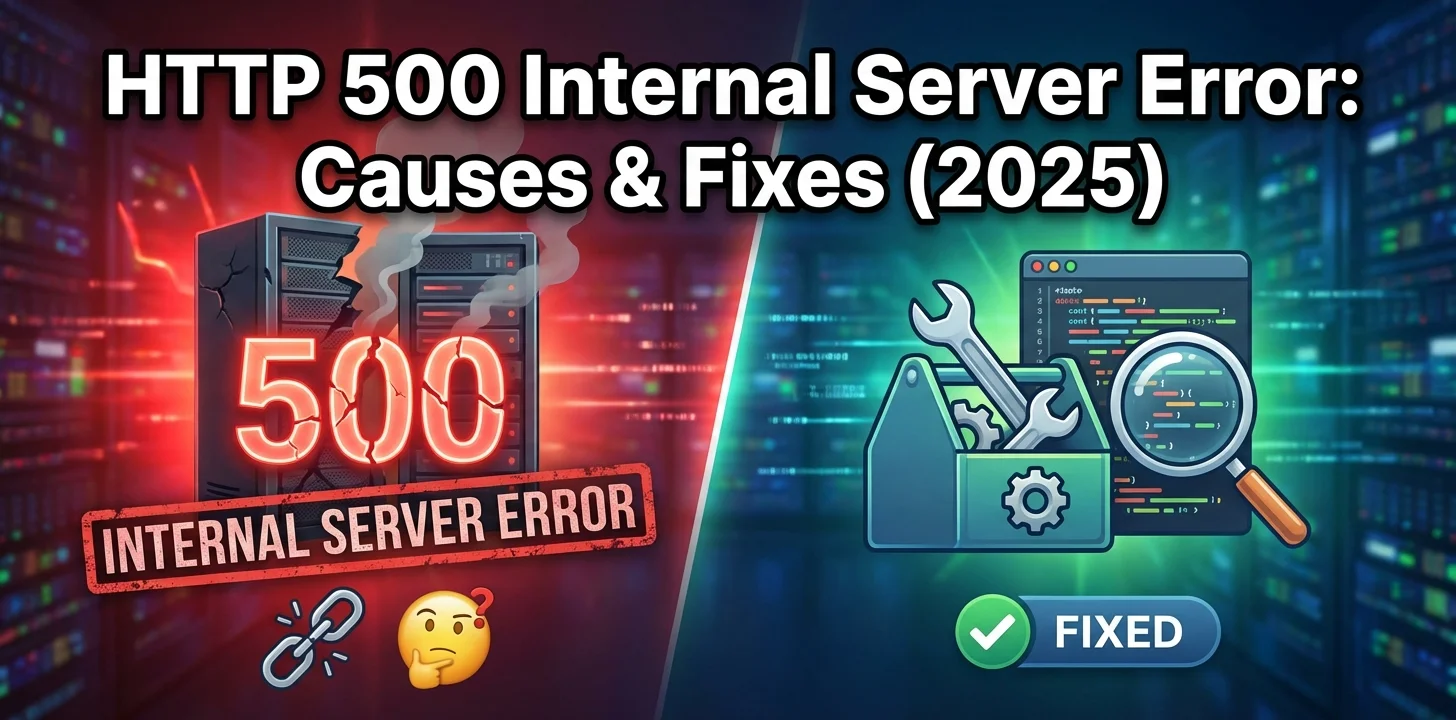
Of all the status codes that flash across a browser screen, few induce panic quite like the HTTP 500 Internal Server Error.
Unlike a specific error that tells you exactly what’s wrong—such as a permission issue indicated by a 403 Forbidden error, or a temporary overload signaling a 503 Service Unavailable—the 500 error is terrifyingly vague. It essentially says: "Something went very wrong on the server, and I have no idea what it is."
At IsYourWebsiteDownRightNow.com, we know that a 500 error is a critical stop-loss event. Your site isn't just struggling; it has crashed. In this guide for 2025, we will demystify this generic error and provide a structured path to recovery.
What is an HTTP 500 Internal Server Error?
The HTTP 500 status code is a generic "catch-all" response generated by your web server.
When you visit a website, your browser sends a request. Ideally, the server processes it and returns the content with an HTTP 200 OK status.
However, if the server encounters an unexpected condition that prevents it from fulfilling the request—and that condition doesn't fit any other specific error code—it throws a 500 error.
It is crucial to understand that this is a server-side error. It is generally not caused by your computer, browser, or internet connection. It also usually rules out external connectivity problems like standard DNS issues or the more specific DNS_PROBE_FINISHED_NXDOMAIN error.
The Most Common Causes in 2025
Because the 500 error is vague, the list of potential causes is long. However, in the modern web landscape (especially for CMS users like WordPress), these are the usual suspects:
1. Corrupt .htaccess File
Just like with 403 errors, a single syntax error in this powerful configuration file can cripple your Apache server, causing it to throw a 500 error instantly.
2. Exhausted PHP Memory Limit
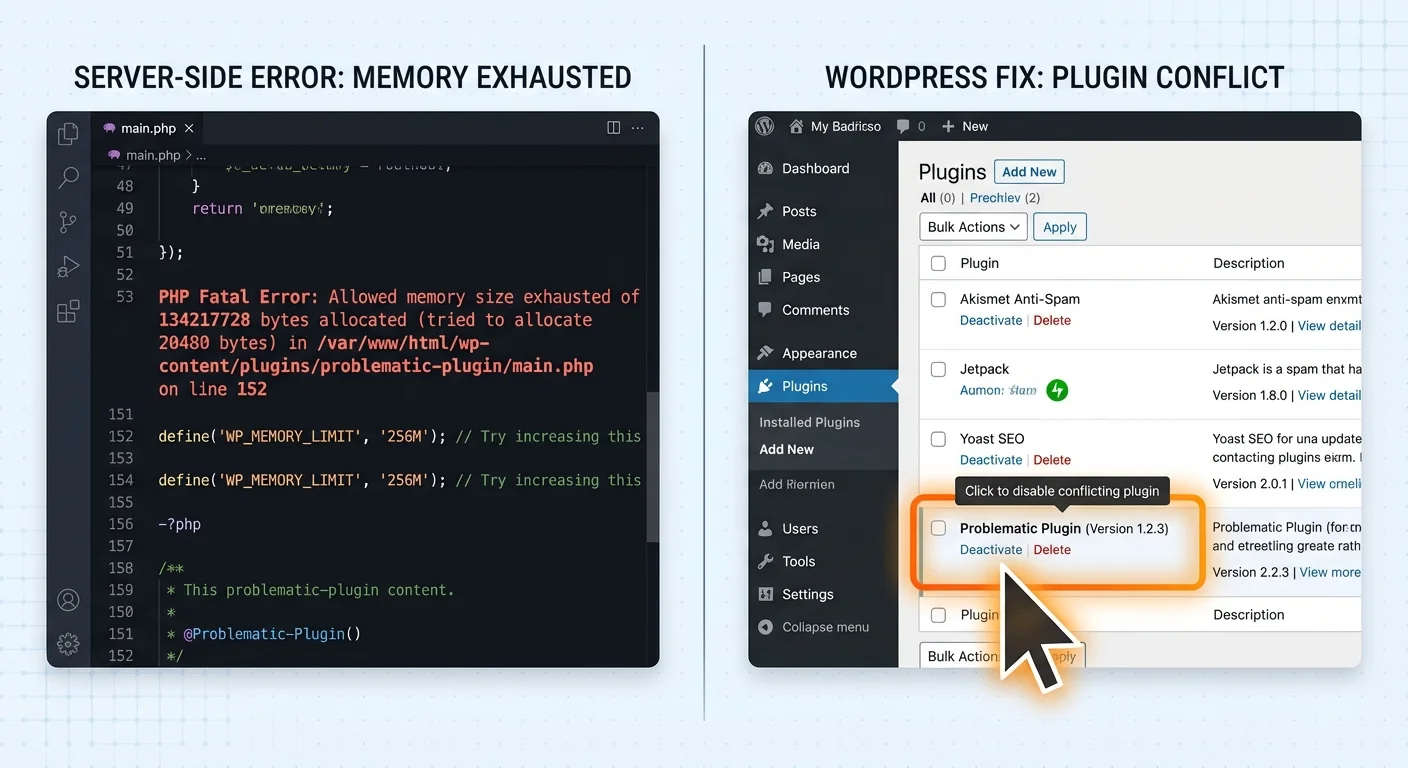
Your web server allocates a specific amount of memory for PHP scripts to run. If a poorly coded plugin or a complex script tries to use more RAM than allocated, the process gets killed, resulting in a 500 Internal Server Error.
3. Badly Coded Plugins or Themes
In the WordPress ecosystem, a plugin update containing a fatal code error is perhaps the most frequent cause of sudden 500 errors. If the code tries to do something impossible, the server gives up.
4. Corrupted Core Files
Though less common, if server files necessary to run your CMS or application become corrupted due to a failed update or file transfer, a 500 error occurs.
How to Fix HTTP 500 Errors (A Structured Approach)
Warning: Before attempting fixes #2 through #5, ensure you have a recent backup of your website and database.
1. The "Turn It Off And On Again" Approach (Client-Side)
Before diving into the backend, rule out transient glitches.
-
Refresh the page (Ctrl+F5 / Cmd+R).
-
Clear your browser cache.
While unlikely to fix a true 500 error, it only takes seconds to verify.
2. The Gold Standard: Check Your Server Error Logs
This is the single most important step for diagnosing a 500 error. Because the "500" message on the front end is vague, you need to look at what the server is saying privately.
Log into your hosting control panel (cPanel, Plesk, etc.) and look for "Error Logs." Open the log and scroll to the bottom for the most recent entries. You will likely see a specific error message indicating exactly which file or script crashed the server. This tells you precisely what to fix.
3. Check for Corrupt .htaccess File
If you can't access logs, start with the usual suspect.
-
Log in via FTP or File Manager.
-
Locate the .htaccess file in your root directory.
-
Rename it to .htaccess_backup.
-
Try loading your site. If it works, go into your CMS settings (e.g., WordPress Permalinks) and save changes to generate a fresh, clean file.
4. Increase the PHP Memory Limit
If your logs indicate memory exhaustion, you need to increase the limit. You can often do this by adding a line to your wp-config.php file (for WordPress) or your .htaccess file:
define('WP_MEMORY_LIMIT', '256M');
Alternatively, ask your hosting provider to increase it for you.
5. Deactivate All Plugins/Extensions
If you recently updated plugins and the site crashed, a bad plugin is likely the culprit. If you cannot access your dashboard due to the 500 error, you must use FTP:
-
Navigate to wp-content/.
-
Rename the plugins folder to plugins_old. This deactivates them all instantly.
-
If the site comes back, you know a plugin is at fault. Rename the folder back to plugins, and then reactivate them one by one in your dashboard until the site crashes again—you've found the bad apple.
Summary
The HTTP 500 Internal Server Error is frustrating because of its vagueness, but it is rarely permanent. By methodically checking your logs, isolating bad code (usually plugins), and ensuring your server has enough resources, you can recover quickly.
Before you start tearing apart your server configuration, always confirm that the issue isn't just a connectivity problem on your end. Use our ultimate guide to checking website status to ensure the site is truly down for everyone.