Have you ever tried to visit a website, but the page just wouldn’t load? Maybe you stared at a blank white screen, watched a spinning wheel that never stopped, or got hit with a confusing error message.
Your first thought is probably: "Okay, the website is down. Their servers must be broken."
So, you rush to Twitter, Reddit, or a status checker, and you see something that makes absolutely no sense. Everyone else is using the site perfectly fine. The official status page says “All Systems Operational.”
If the website is up for everyone else, why is it dead for you?
In 2025, the answer is rarely a broken server or a power outage. The answer is usually that you have been blocked.
The internet has changed dramatically in the last few years. Websites are no longer just open doors that anyone can walk through. Today, they are guarded by powerful security systems, Artificial Intelligence (AI), and complex firewalls. These systems are designed to keep out hackers, spies, and bots. But sometimes, they make a mistake. They mistake you — a real human being — for a digital threat.
This guide will explain exactly why a working website might be blocking you, how modern "anti-bot" technology works, and most importantly, how to tell the difference between a site that is actually down and a site that just hates your internet connection.
The New Reality: “UP” Doesn’t Mean “Accessible”
To understand why this happens, we have to look at how the internet used to work versus how it works now.
Ten years ago, if a website didn’t load, it meant the server was physically unplugged, the code crashed, or the power went out at the data center. It was a simple binary situation: it was either On or Off.
Today, that is no longer true.
Modern websites use huge, global networks called CDNs (Content Delivery Networks) and layers of security software to protect themselves. This means a website can be technically "Up" and running perfectly on the server, but it is programmed to reject specific people, specific locations, or specific behaviors.
When you cannot access a site in 2025, it is usually not a technical failure. It is a decision.
The security system guarding the website has decided to stop you at the front door. Depending on how they configured their security, you might see:
-
A totally blank white page (the "silent block").
-
A "Connection Timed Out" message that makes you think your internet is slow.
-
An endless loop of CAPTCHA images (asking you to click on traffic lights or motorcycles forever).
-
A "403 Forbidden" error code.
To the website owner, the site is fine. Their charts show green lights. But to you, the user, the site is broken.
This confusion is exactly why it is so important to understand the difference between a global outage and a personal restriction. If you don't know the difference, you will waste hours refreshing a page or restarting your router, waiting for a fix that will never come.
👉 Deep Dive: Access Blocked vs. Website Down: How to Tell the Difference
What Is Actually Blocking You? (It’s Not the Server)
If the server isn't broken, who—or what—is stopping you from seeing the content?
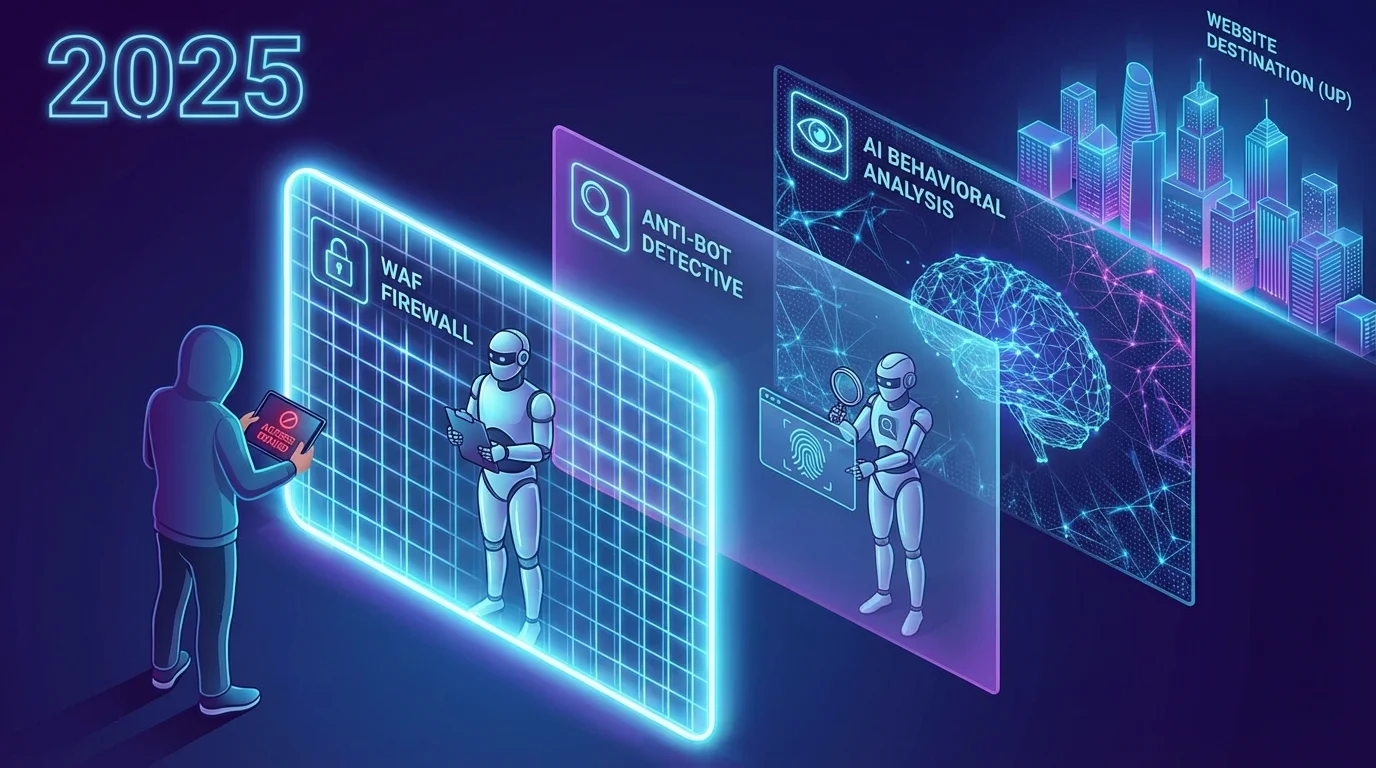
In 2025, major websites are protected by three main "bouncers." Think of them like security guards at a popular nightclub. They check your ID, they look at your shoes, and they watch how you behave in line before they decide if you are cool enough to enter.
1. Web Application Firewalls (WAF)
The most common blocker you will face is the WAF. You have probably seen their names on error screens before: Cloudflare, Akamai, Fastly, or Imperva.
These are services that sit in front of a website. When you click a link, your request goes to the WAF first, not the website's actual server. The WAF looks at your request and analyzes it instantly. If it sees anything suspicious, it drops your connection before you even reach the website.
WAFs look for "signatures" of bad behavior. For example:
-
Are you refreshing the page 50 times a second? (Humanly impossible).
-
Does your computer send data headers that look broken?
-
Is your IP address on a known "blacklist"?
If the answer is yes, the WAF slams the door shut.
2. Anti-Bot & AI Detection Systems
This is the newest and smartest technology, and it causes the most confusion for normal users.
Old security systems just looked at your IP address. New AI systems look at behavior. They are trying to figure out: "Is this a human or a robot?"
They check things you wouldn't expect:
-
Mouse Movement: Humans move mice in curved, imperfect lines with varying speeds. Bots move instantly from point A to point B in straight lines.
-
Scrolling Speed: Do you scroll down the page at a natural reading pace, or do you jump to the bottom instantly?
-
Browser Fingerprinting: They look at your screen resolution, your battery level, your installed fonts, and your browser extensions.
If the AI thinks your "fingerprint" looks suspicious—perhaps because you use a privacy extension that hides your data—it will categorize you as a "Bot" and silently block you. You won't even get an error message; the page just won't load.
3. Geo & ISP-Based Restrictions
Sometimes, the block isn't about who you are, but where you are.
-
Geo-Blocking: This is very common with video streaming and news sites. A website might block your access simply because your IP address comes from a country where they don't have a legal license to show their content.
-
ISP Blocking: This is the harsh one. Some websites block entire Internet Service Providers (ISPs). If you are using a cheap hosting provider, a specific mobile network, or a public university WiFi that has a history of spam, the website might block everyone on that network. It’s guilt by association.
👉 Related: HTTP 403 Forbidden: What It Means & How to Fix It
👉 Related: Is Your Website Blocked by Your ISP? How to Check
Why VPNs, Proxies, and AI Agents Are Blocked First
"I'll just turn on my VPN!"
That is usually the first thing people try when a site won't load. Ironically, in 2025, using a VPN often makes the problem worse.
Here is why.
When you use a commercial VPN (like NordVPN, ExpressVPN, etc.), you are sharing an IP address with thousands of other people. Imagine you are renting an apartment. If the previous tenant was a criminal who robbed the neighbors, the neighbors won't trust you, even though you are a nice person.
VPN IP addresses have a "reputation score." Because hackers, scammers, and spammers love using VPNs to hide their identity, security systems automatically give VPN IPs a low trust score.
If you try to visit a highly secure site (like a bank, a government login page, or a ticket-selling site) using a cheap VPN, you will likely get blocked immediately. The security system sees "Data Center IP" and assumes you are a bot.
The Rise of AI Agents
We are also seeing a massive rise in "AI Agents" — software that browses the web for you to gather data. Websites are terrified of these agents scraping their content (stealing their text and images to train other AI models).
Because of this fear, websites have set their "sensitivity" dial to maximum. They are aggressively blocking anything that doesn't look 100% human. If you are using privacy tools, ad blockers, or "headless" browsers, you look like a bot to them.
👉 Deep Dive: Real-Time Website Status API: A Definitive Guide for AI Agents
When Blocking Looks Exactly Like Downtime
The most frustrating part of modern blocking is that it lies to you.
In the past, if you were blocked, you saw a big red screen that said: "ACCESS DENIED." You knew exactly what the problem was.
Today, security systems prefer "silent blocking." They don't want to tell the bad guys (or you) that they have been caught. So, instead of an explicit error message, they just ignore your request.
This leads to confusing situations that look like technical errors but are actually security filters:
-
The 504 Gateway Timeout: You wait for 30 seconds, and then the browser says the server took too long. You think the website is slow or crashed. In reality, the firewall caught your request and just held it until it expired. It "ghosted" you.
-
The 503 Service Unavailable: This usually means the server is overloaded. However, many firewalls are configured to send a fake 503 error to bots to make them go away and come back later.
-
Regional Failures: The site works perfectly in New York, but is completely dead in London. This isn't a server crash; it's a regional filter gone wrong or a broken routing rule in the CDN.
If you see these errors, do not immediately assume the site is broken. You might just be in the "penalty box."
👉 Read more: 504 Gateway Timeout: Meaning, Causes & Solutions
👉 Read more: 503 Service Unavailable: What It Really Means
👉 Read more: “This Site Can’t Be Reached” Troubleshooting Guide
How to Tell the Difference (The Only Reliable Way)
Okay, so the site isn't working for you. How do you know—with certainty—if it is a global crash or just a block on your connection?
You cannot trust your browser cache (it might be showing you an old version of the page). You cannot trust a simple "Ping" command in your terminal (many modern servers block Pings even when they are working fine).
Here is the checklist you must follow to get the real answer.
1. Check HTTP Status Codes
Don't just look at what the screen says. If you know how to open "Developer Tools" in your browser (F12), look at the Network tab. The code the server sends back tells the truth:
-
200 OK: The site is up. If you see a blank page, it's your browser failing to render it.
-
403 Forbidden: The server is up, but it hates you. You are blocked.
-
429 Too Many Requests: You are being rate-limited (blocked for clicking too fast).
-
500 Internal Server Error: The server is actually broken.
2. Try a Different Network (The "Mobile Test")
This is the easiest, non-technical trick. If a site won't load on your home WiFi:
-
Turn off WiFi on your smartphone.
-
Make sure you are using your 4G/5G mobile data.
-
Try to load the site.
-
If it loads on your phone: Your home IP address is blocked or your ISP has a routing issue. The site is UP.
-
If it fails on your phone too: The site is likely actually down for everyone.
3. Check DNS Resolution
Sometimes, the "phone book" of the internet (DNS) is broken. Your computer doesn't know where to find the website's IP address. If you get a "DNS_PROBE_FINISHED_NXDOMAIN" error, the website is usually fine, but your computer's DNS settings are wrong.
4. Check SSL/TLS Certificates
If your browser says "Your connection is not private," the website isn't down. It just let its security certificate expire. It is still there, but your browser is refusing to let you in for safety.
👉 Essential Guide: How to Check If a Website Is Down (Step-by-Step)
👉 Fix It: How to Fix DNS Issues
👉 Security Check: SSL Certificate Expired? How to Fix It
Why “Is It Down?” Searches Are Increasing in 2025
Have you noticed that websites seem to "break" more often lately?
Statistics show a massive spike in people searching "Is Instagram down?", "Is ChatGPT down?" or "Is Discord down?"
The truth is, reliability has actually improved. Servers are better and faster than ever before. But accessibility is getting worse.
We are entering an era of "Zero Trust." Website owners are scared. They are scared of massive DDoS attacks, they are scared of AI scrapers stealing their data, and they are scared of fraud. Because of this fear, they are setting their security gates to "High Alert."
This results in millions of false positives every day. Normal users—people like you trying to buy shoes, read a blog post, or check your bank balance—are getting caught in digital nets designed to catch robots.
As AI becomes more common, this war between "bots" and "blockers" will get more intense. The average user is just caught in the crossfire.
👉 Trend Analysis: Why AI Websites Are Crashing 73% More Than Ever
The Bottom Line: Downtime vs. Restriction
Let's simplify everything we've covered.
There are two main reasons a website doesn't load:
-
Downtime: The machine is broken. No one can enter, no matter who they are.
-
Restriction: The machine is working, but the door is locked for you.
In 2025, if you visit a major website (like Amazon, Netflix, Google, or Facebook) and it doesn't load, there is a 99% chance it is a Restriction, not Downtime. These companies have billions of dollars in infrastructure; they rarely just "turn off."
So, the next time you see a connection error, don't panic. Don't restart your router ten times.
First, check if the site is available from a different location (like your phone). Check if you are using a VPN that might be blocked. Check if your browser is sending weird signals.
Understanding the difference saves you stress. It helps you stop blaming your computer for problems that are actually happening in a security cloud thousands of miles away.
If you need to know—with 100% certainty—whether a website is down or if you are just being filtered, you need to test it from multiple locations at once. That is the only way to see the truth.
👉 Check any site instantly: Homepage Status Checker
👉 For Developers: Get status data via API